Preferences
Preferences help you finesse your workspace setup by toggling on and off layer drop shadows and rotation snap as well as helping you reset your palettes.
Architecture site plan drawing by Omar Calderon.
How to Set Up Preferences
Tap the Wrench button and then select "Preferences" to set up your preferences.
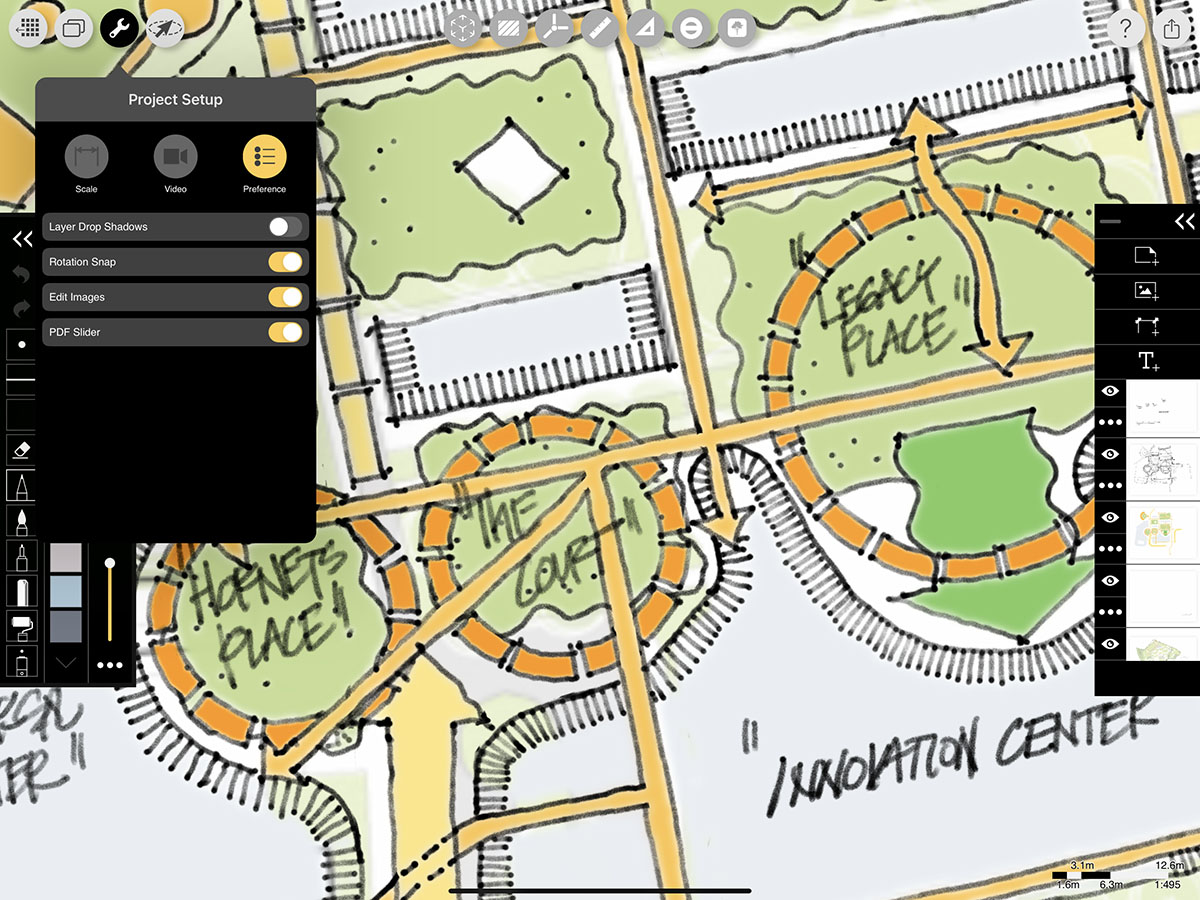
Layer Drop Shadows
Turn drop shadows on or off for each of your layers.
Pro Tip
When your layer drop shadows are turned on, they do not print when you export your drawing.
Rotation Snap
Toggle 45º and 90º snaps for your drawing tools and layer rotation on or off.
Edit Images
Turn on to use the Eraser and Lasso with images.
PDF Slider
Show or hide the PDF Slider to quickly jump between PDF pages.
How To Video
Enjoy this how to video highlighting how to set up your preferences.
Additional Resources
How To...Use Project Settings
About Morpholio Trace - Sketch Cad
Why Morpholio Trace for Architects, Landscape Architecture and Interior Designers?
Awarded Best Apps for architects, landscape architects, and interior designers, Trace is the dream sketch cad and architecture drawing software. Featured as both, the best app for iPad Pro and the best app for Apple Pencil, Trace combines the beauty and speed of sketching with the intelligence and precision of CAD. Whether you’re drawing project concepts, sketching through schematic design and designing architectural details, or just drawing on-site visits through construction administration and making high-res PDF drawing set markups, Morpholio Trace is everything you need for your new favorite architect app, landscape design app, or interior design app all in one. Welcome to the new best drawing app for iPad Pro.
Morpholio Trace Ecosystem
Morpholio drawing apps are not only named as the best app for architects, best app for architecture, best app for interior design, best design app, best app for landscape architects, and best app for iPad Pro, but they also now work as a perfect complement to, and seamlessly with your favorite architectural software, architecture apps, cad software, cad app, and interior design software. This includes Autodesk AutoCad, TinkerCad, Revit, SketchUp, SketchUp Viewer, Rhino, Pinterest, Adobe Photoshop, Shapr3D, UMake, and many more. In addition, your Apple iPad Pro, iPhone, and Apple Pencil will never be more exciting to use as Morpholio’s suite of drawing, design, and sketching apps become even more essential in your design process.